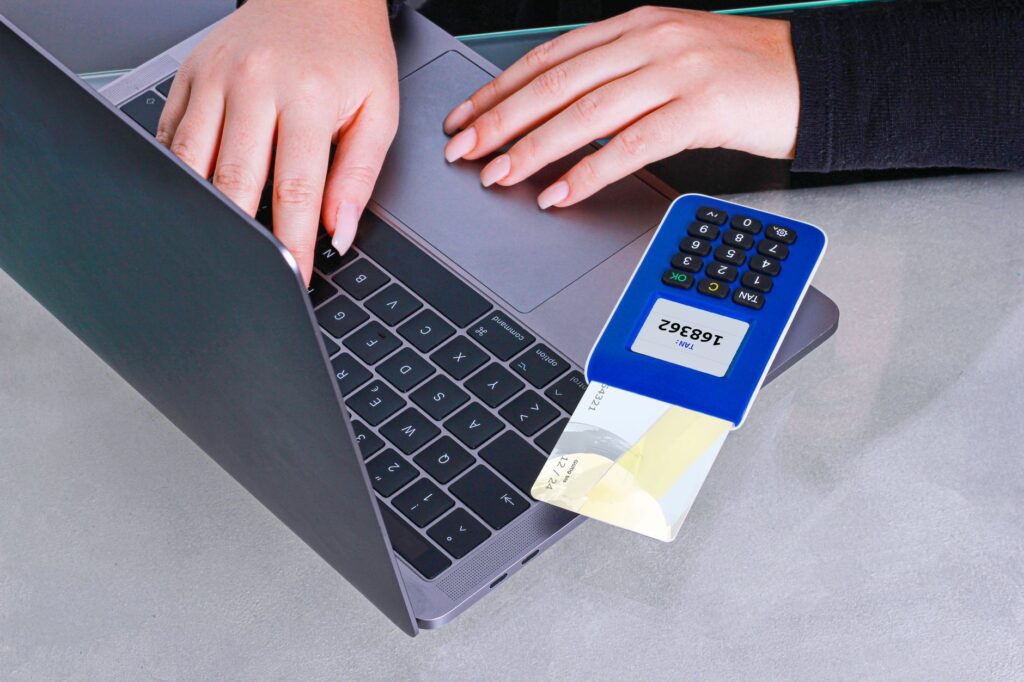
Quick Answer: To set up Two-Factor Authentication (2FA), log into your account, navigate to security settings, and enable 2FA using your preferred method such as SMS, an authenticator app, or a hardware token. Most services prompt you to store backup codes securely for future access.
Still relying solely on passwords? You’re a hacker’s buffet and don’t even know it. Setting up Two-Factor Authentication (2FA) is no longer optional — it’s essential. In 2021, over 81% of security breaches involved weak or stolen passwords. So, yes, adding an extra layer of security through 2FA is a must. Here’s how you go from vulnerable to vigilant.
Why should you care about 2FA?
Two-Factor Authentication is like that extra bolt on your front door — if someone’s coming to raid your fridge, they’re gonna have to work a lot harder. Passwords can be stolen, cracked, or even guessed. But with 2FA, you add another barrier that typically involves something you know (like a password) and something you have (like your phone).
By enabling 2FA, you’re demanding anyone who wants to log in as you, have access to your personal device. That’s a pretty significant bump in security. Services like Proton Mail have reported much lower breach rates for accounts using 2FA compared to those that don’t. Still unconvinced?
Pro tip: If you have a choice, always opt for authentication apps like Google Authenticator over SMS — they’re less prone to interception.
How do I set up Two-Factor Authentication on Google?
Setting up 2FA on Google? Absolutely a no-brainer. Here’s how you do it without breaking a sweat:
First, log into your Google account and head over to the security settings at myaccount.google.com/security. Hit that “2-Step Verification” button. Trust me; it’s worth the clicks. They’ll offer you options ranging from SMS, Google Prompts, to authentication apps.
Don’t forget to scan that QR code if you’re using an app like Authy. And yes, even Google will give you those golden backup codes. Keep them somewhere thieves would never think to look. (NOT next to your device!)
How can you set up 2FA on Facebook?
Facebook might be where you argue with relatives, but it’s equally where your personal data lives — secure it. Navigate to Settings & Privacy via the downward arrow, push through to the Security and Login section, and then Two-Factor Authentication. Easy-peasy, right?
You’ll have options: SMS, authenticator app, or even a hardware key. Choose one; just do it.
Try this: If you use an authenticator app, activate push notifications for extra peace of mind.
Does Twitter make 2FA easy?
If you’re on Twitter spouting 280-character wisdom, you’re already aware that trolls are real. Keep them — and thieves — out of your account with 2FA. Head to Security and Account Access, then Security again. From there, enable Two-Factor Authentication by picking your poison: SMS or an authenticator app. I trust you’ll pick the app.
As you walk through Twitter’s matrix of setup prompts, remember: Backup codes are your best friends in emergencies.
Pro tip: Signing up or switching to a security key is a next-level move if you really want to nail down unwanted access.
Feature
Google
Facebook
Twitter
Method Options
SMS, Authenticator, Backup Codes
SMS, Authenticator, Security Key
SMS, Authenticator
Authentication Apps
Yes
Yes
Yes
Backup Codes
Yes
Yes
Yes
Security Key Compatibility
No
Yes
Yes
How do you enable 2FA on a Microsoft account?
If clippy could, he’d remind you to secure your Microsoft account with 2FA. Thankfully, Microsoft makes it straightforward. Head over to their security section via account.microsoft.com/security and select ‘Security Info’. You’ll need to add a new sign-in method, which could be a phone number or maybe even an email.
Follow Microsoft’s no-nonsense prompts to secure your Fortress of Solitude. Then sit back, sip that coffee, knowing your digital world is just a bit safer.
Try this: Keep security alerts on so Microsoft can inform you of any funkiness happening with your 2FA.
Amazon and Two-Step Verification — yes, please!
Between random gadget shopping sprees, secure your cart and account. Access the Login & Security section in Your Account, and unleash Two-Step Verification. The Land of Bezos offers options like app-based codes and traditional SMS. Choose wisely.
Whenever you have the opportunity, favor stronger authentication methods. Get those time-generated codes zipped right to your phone or authenticator app.
Pro tip: Rotate backup codes before holidays—when you’re bound to be shopping the most.
The finer points of managing Two-Factor Authentication
Managing 2FA doesn’t mean just setting it up and moving on with life — it needs a regular check-in too. Make it a habit to regularly update your recovery options. This means if you change your phone number, your accounts don’t go into a meltdown.
Authenticator apps don’t just plop into your phone and do magic. Keep them updated and maybe even explore alternatives like MyData Security if Google Authenticator isn’t your jam.
Try this: Periodically review your backup codes and replace them if necessary. Also, store them securely, preferably offline.
Conclusion
Securing your online accounts with Two-Factor Authentication is no longer just wise — it’s essential. Your accounts, whether it’s your email or Shopify store, benefit from the additional protection layer. Start your security upgrade today by enabling 2FA.
Frequently Asked Questions
What is the best method for Two-Factor Authentication?
The most secure method involves using an authentication app like Google Authenticator or Authy because they are less susceptible to phishing attacks or SIM swap scams, unlike SMS.
Can 2FA methods be combined for better security?
Yes, certain services allow you to set up multiple 2FA methods for added security. For example, you can use both an authentication app and a security key for a layered defense.
What happens if I lose access to my 2FA device?
If you lose your 2FA device and don’t have backup codes, gaining access back can be challenging. It’s why keeping backup codes safely stored and securing recovery information is essential.
Do all accounts support Two-Factor Authentication?
Many popular services support 2FA, but not all of them. Always check your account’s security settings. For accounts without 2FA, ensure you use a unique and strong password.